HEXTICK

BROWSER MUSIC TRACKER

HEXTICK

Everything you need to get an idea out of your head and into a finished track — in a browser tab, with no install and no account. Type notes with the keyboard; when you stall, it writes the melody, the chords and the variations for you.

Open the tracker
  • Free — every feature, no trial
  • No install — it is a page
  • No upload — your music never leaves your machine
  • No account — there is nothing to sign in to

FREE The whole thing. Sixteen tracks, the send buses, the master chain, WAV export — no trial, no watermark, no account, no upsell.

0x0000 Hear it

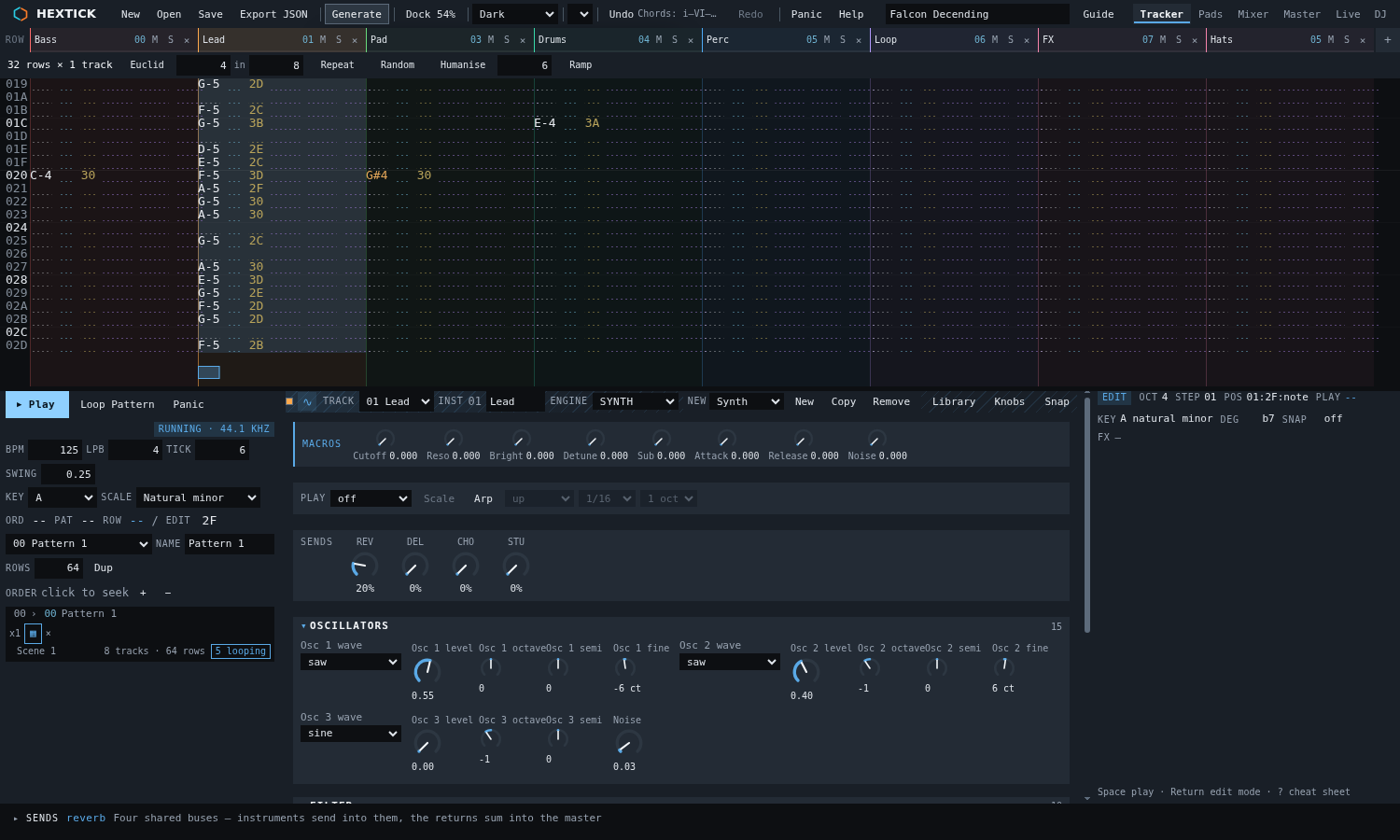
That is not a video. It is the tracker, in a frame, playing Falcon Decending by Thricona — all eight parts of a real track, on the same engine the full app runs. Press play, then click a cell and type a note with your keyboard.

Skin

Falcon Decending — Thricona, used with permission. Every part is here, looping the figure the song is built on; the app keeps the artist's 64-row arrangement, where some parts enter and leave. The full app has sixteen tracks, a mixer with EQ and sends, scenes, the Generate menu and WAV export.

0x0100 What you get

0x0200 Six engines, and a reason for each

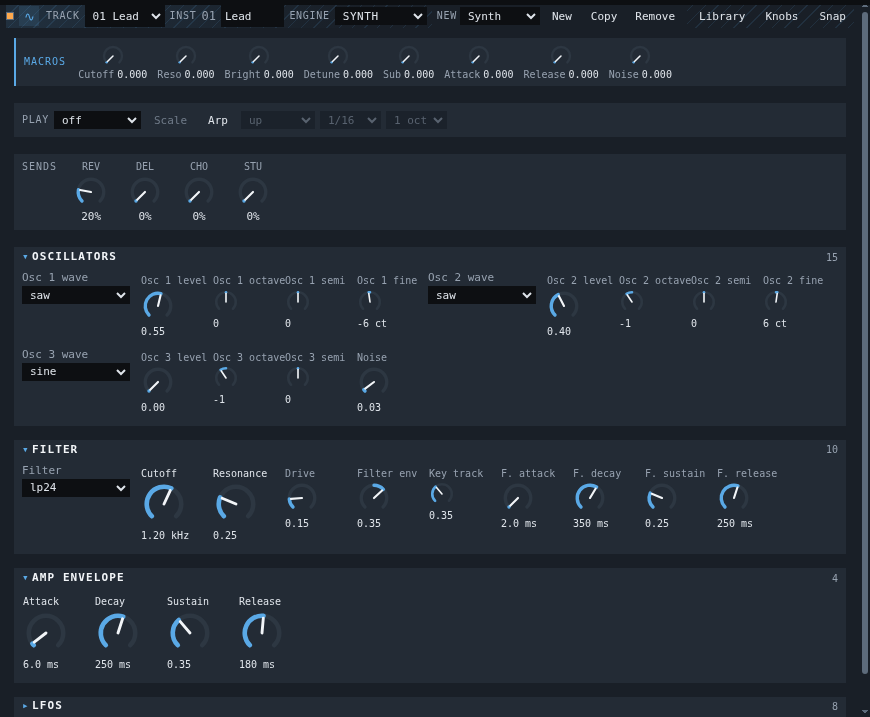
Not one synthesizer with a lot of knobs — six different ways of making a sound, because a plucked string, a drum skin and a grain cloud are not variations on a theme. Each engine brings its own eight macros, so the row of knobs at the top is the row that matters for the sound you are actually making.

The subtractive engine panel: eight macros, three oscillators each with waveform, level, octave, semitone and fine detune, and a filter section with cutoff, resonance, drive and its own envelope

Subtractive

The general-purpose one, and where most sounds start.

  • Three oscillators, each with waveform, level, octave, semitone and fine detune.
  • A resonant filter with drive, key tracking and its own envelope — the shape that turns a buzz into a bass line.
  • Macros named for this engine: Cutoff, Reso, Bright, Detune, Sub, Attack, Release, Noise.
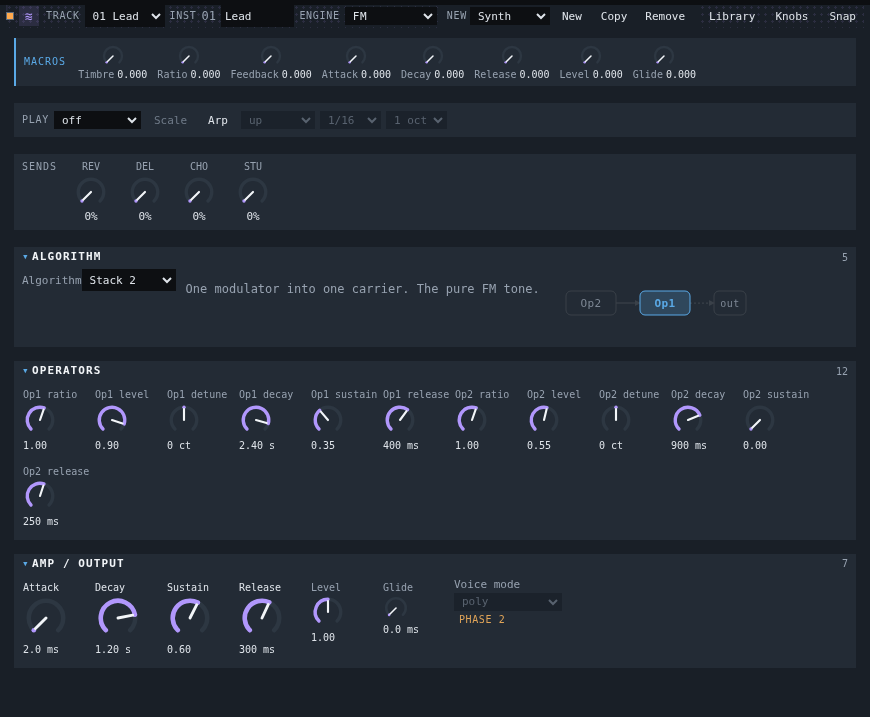
The FM engine panel: an algorithm picker with a drawn signal path, and two operators with ratio, level, detune, decay and sustain

FM

Bells, electric pianos, and sounds that change character as they ring.

  • Five routings — Stack 2, Stack 3, Twin 2, Double mod, Feedback — each one drawn, so you can see the signal path instead of inferring it from a number.
  • Every routing described in a sentence: "The carrier modulates itself, filling the spectrum. Metallic."
  • Two operators with ratio, level, detune and their own decay and sustain — the ratio is what decides whether it reads as a bell or a piano.
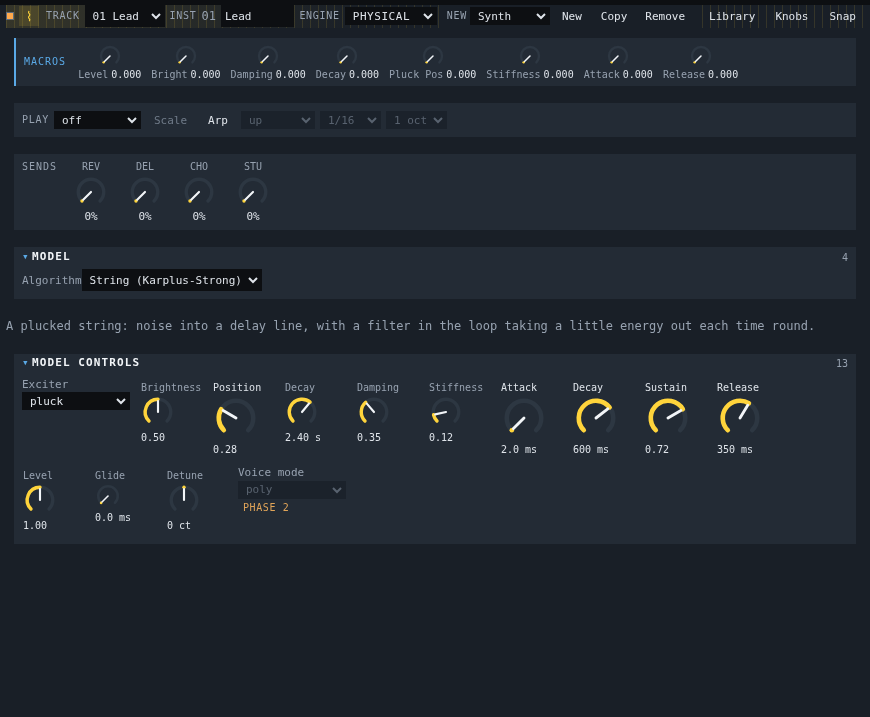
The physical modelling panel: a model picker with the Karplus-Strong string selected, the sentence describing it, and controls for exciter, brightness, position, damping and stiffness

Physical modelling

Strings, bells and skins. Modelled rather than sampled, so they respond to how you play them.

  • Four algorithms: a plucked string, a struck bar or bell, a bowed string, and a drum skin.
  • Each explained in plain words rather than by name — "A struck bar or bell: a bank of resonators, one per partial, each decaying at its own rate. Inharmonicity is what makes it metal."
  • Controls named for the physical thing they change: exciter, position, damping, stiffness.
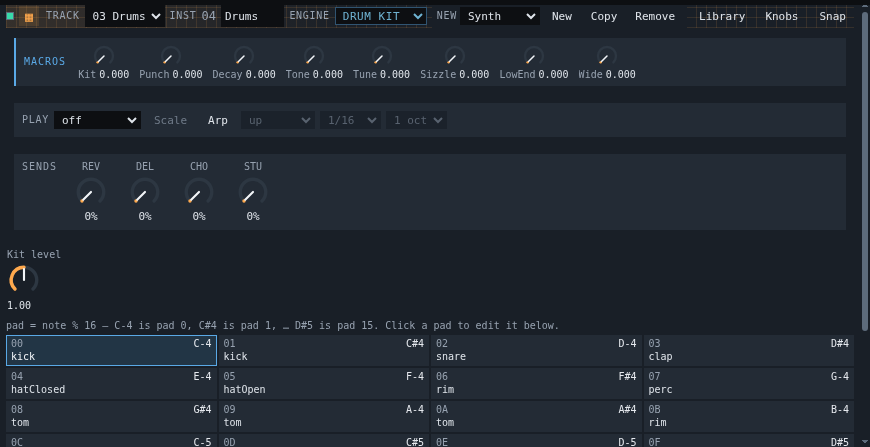
The drum kit editor: a matrix of pads with per-pad level, pan, tune and decay

Drum kit

One row per pad. A kit is not a sample you have to play in key.

  • A pad per drum, each with its own Level, Pan, Tune and Decay.
  • Click a cell to place a hit, drag across to paint a run, drag up and down inside a cell to set how hard it lands.
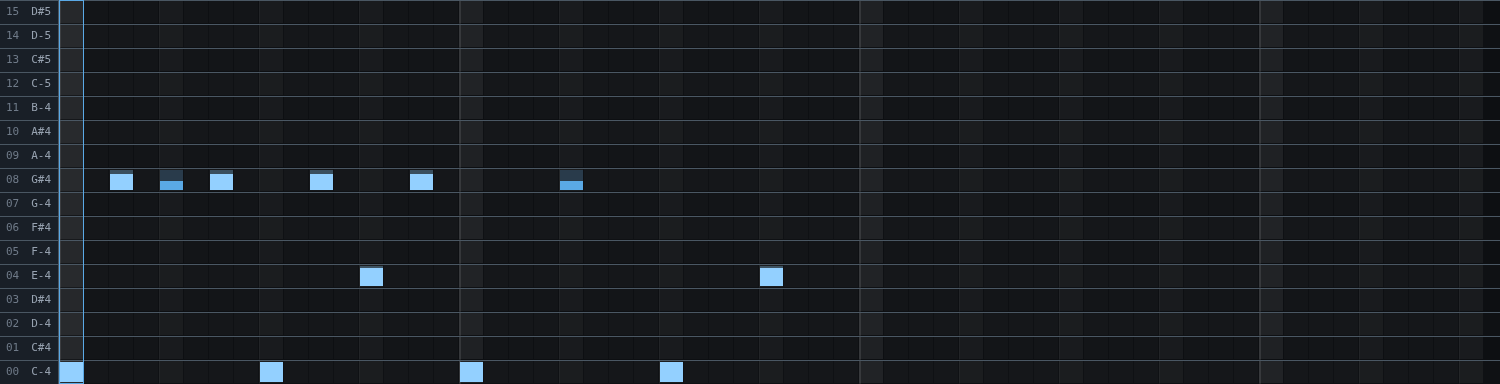
  • Plays in the pad grid as rows, so a beat is a picture rather than a column of numbers.
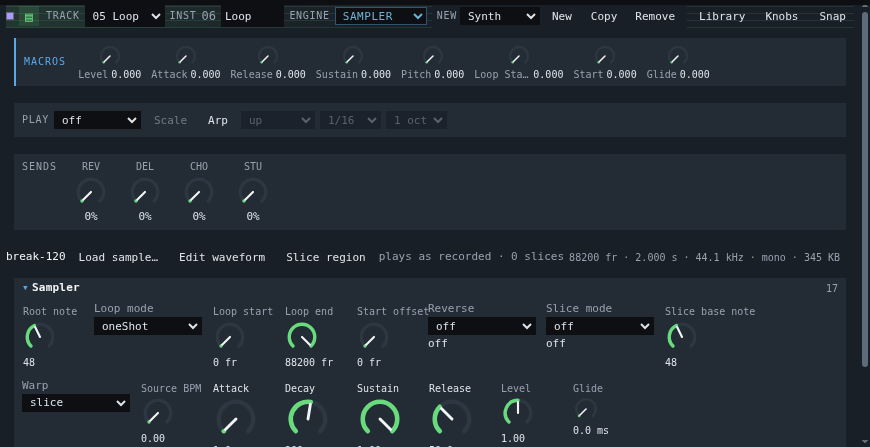
The sampler panel: root note, loop mode, loop start and end, start offset, slice mode and slice base note

Sampler

Your own audio, played back in key.

  • Load a WAV and it plays across the keyboard from a root note you choose.
  • Key and tempo detection, so a loop you drop in arrives in the right key at the right speed instead of needing to be prepared first.
  • Slices, and warp modes that follow tempo — and a slice can be put in key without moving the keyboard.
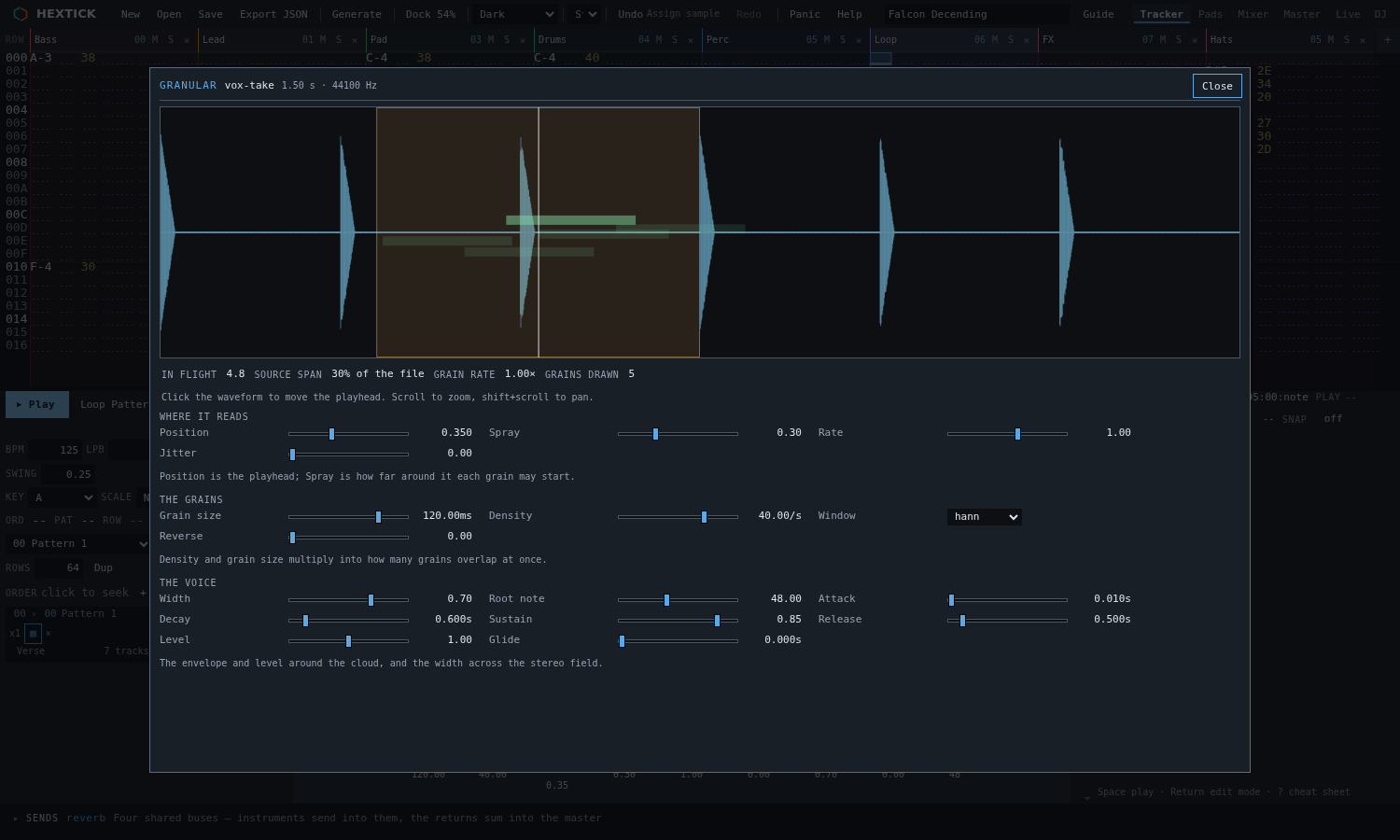
The granular view: the source sample, the grain cloud drawn over it, and every control on one screen

Granular

Clouds. A sample smeared into grains you can walk through.

  • Position, Spray, Density, Grain size, Width and Rate.
  • A view that draws the cloud and puts every one of the engine's controls on one screen, so you can see what you are hearing.
  • The one you reach for when a sample is nearly right and you want the part of it that is not a note.

0x0300 Six views, one song

The same pattern, seen the way each job needs to see it. Switching is one click or one keystroke, and nothing you are working on moves when you do.

Tracker

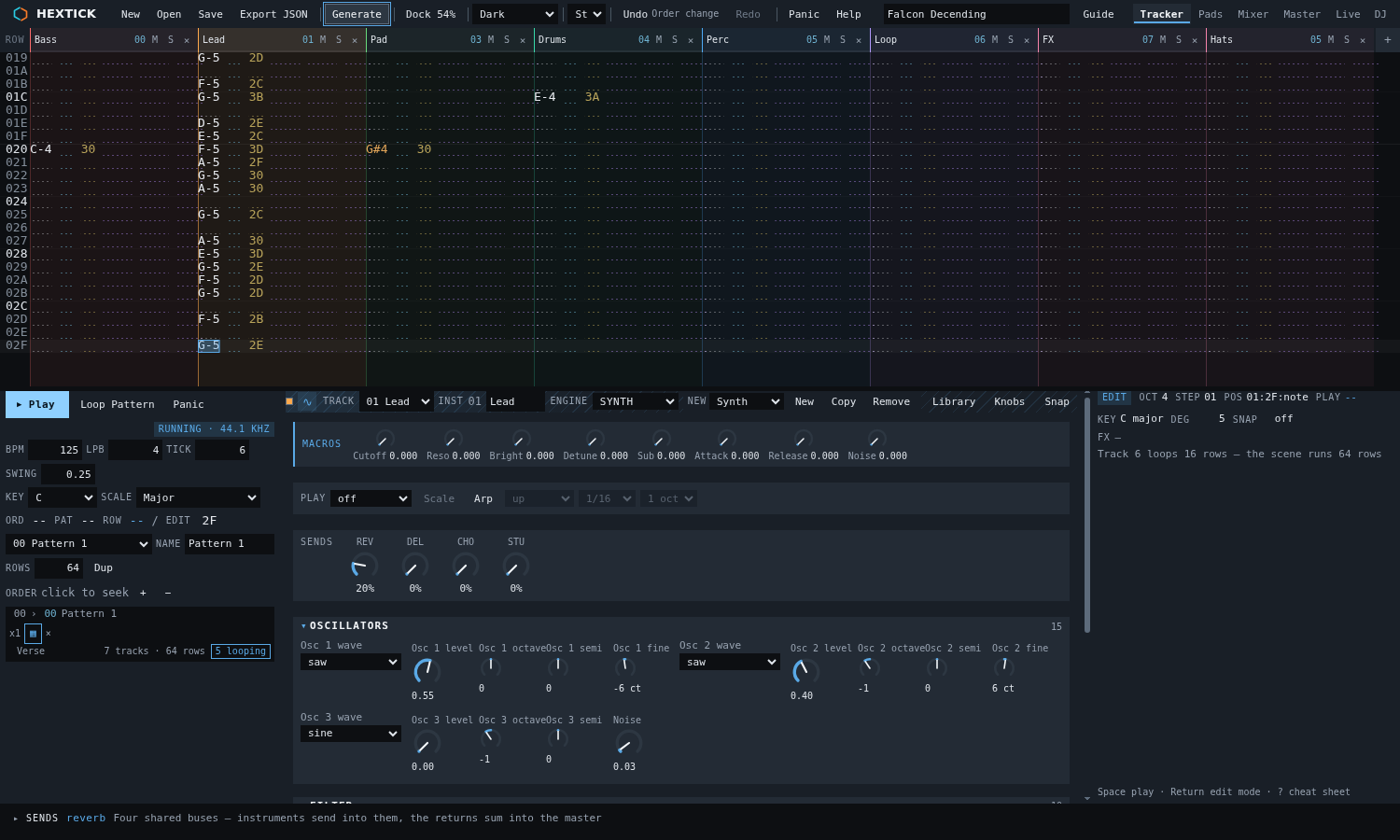
The grid. Hex row numbers, four sub-columns per track — note, instrument, volume, effects — and a keyboard that writes straight into it. This is where you spend your time, and it never asks you to reach for the mouse.

Pads

One row per drum pad, for kits. Click to place a hit, drag across to paint a run, drag up and down inside a cell to set how hard it lands. Rhythm without any note-reading.

Mixer

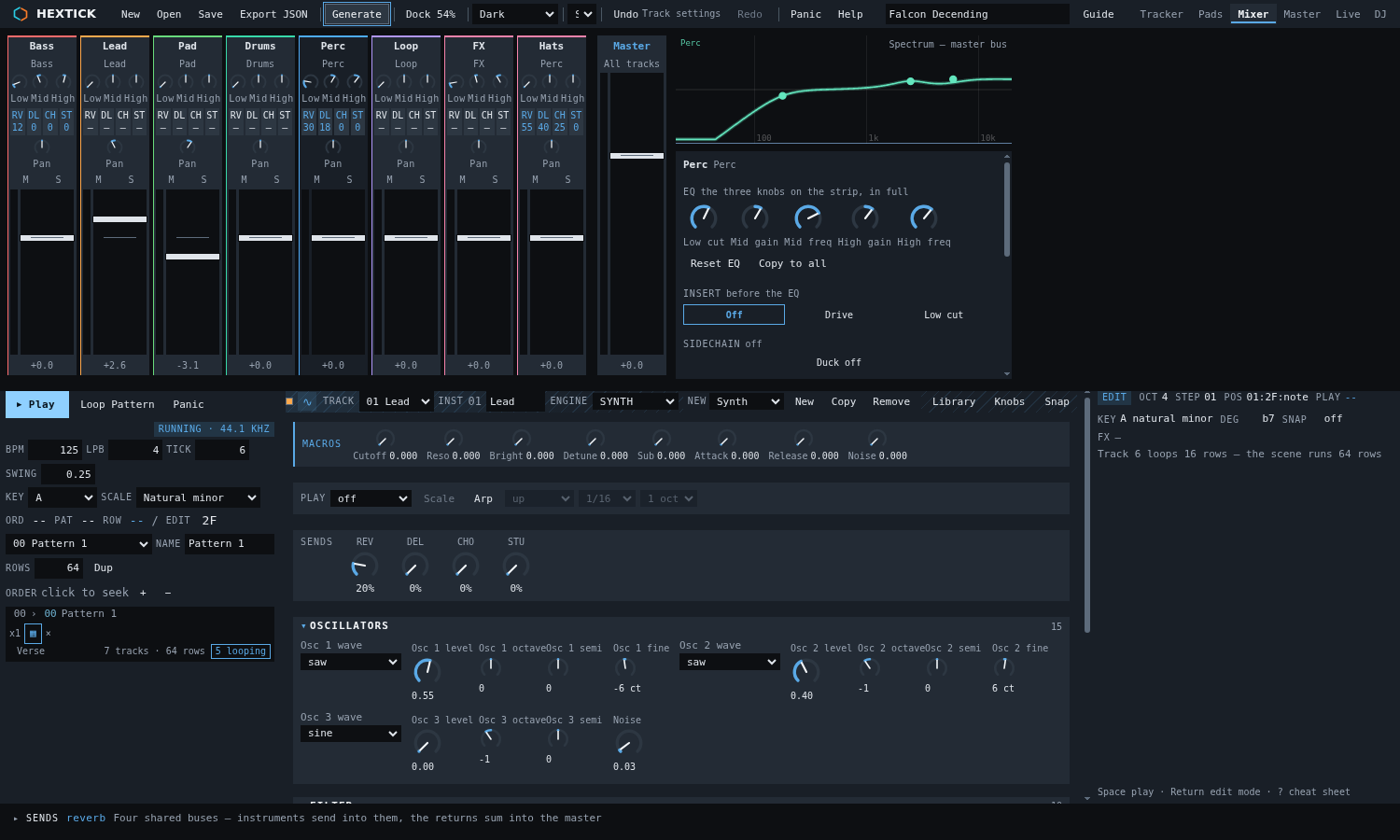
A strip per track: fader, pan, mute, solo, meter, sends, and three EQ knobs you can reach without opening anything. Click a track for the full EQ, the insert and the sends — and the spectrum above draws your EQ curve over the live mix, so you can see the mud you are cutting.

Master

An oscilloscope with the limiter's ceiling drawn on it — so you can see the limiting — plus a spectrogram, a goniometer, and the compressor and limiter controls.

Live

The song's scenes as pads, launched on the next bar so a change lands with the beat instead of against it. The armed scene pulses, the playing one is filled in, and every track has a mute, a solo and a level. Number keys launch, arrows move, M and S mute and solo — no mouse needed mid-set.

DJ

Two projects at once, each with its own engine and its own scenes: a crossfader, a level and a filter per deck, and one master meter. Sync copies a tempo and starts the second deck on the first one's next bar. Neither project can touch the other.

Everything follows the pointer: faders, knobs, the numbers under them and the curve on the spectrum all move as you drag. One gesture is one undo step.

0x0400 Four skins, one instrument

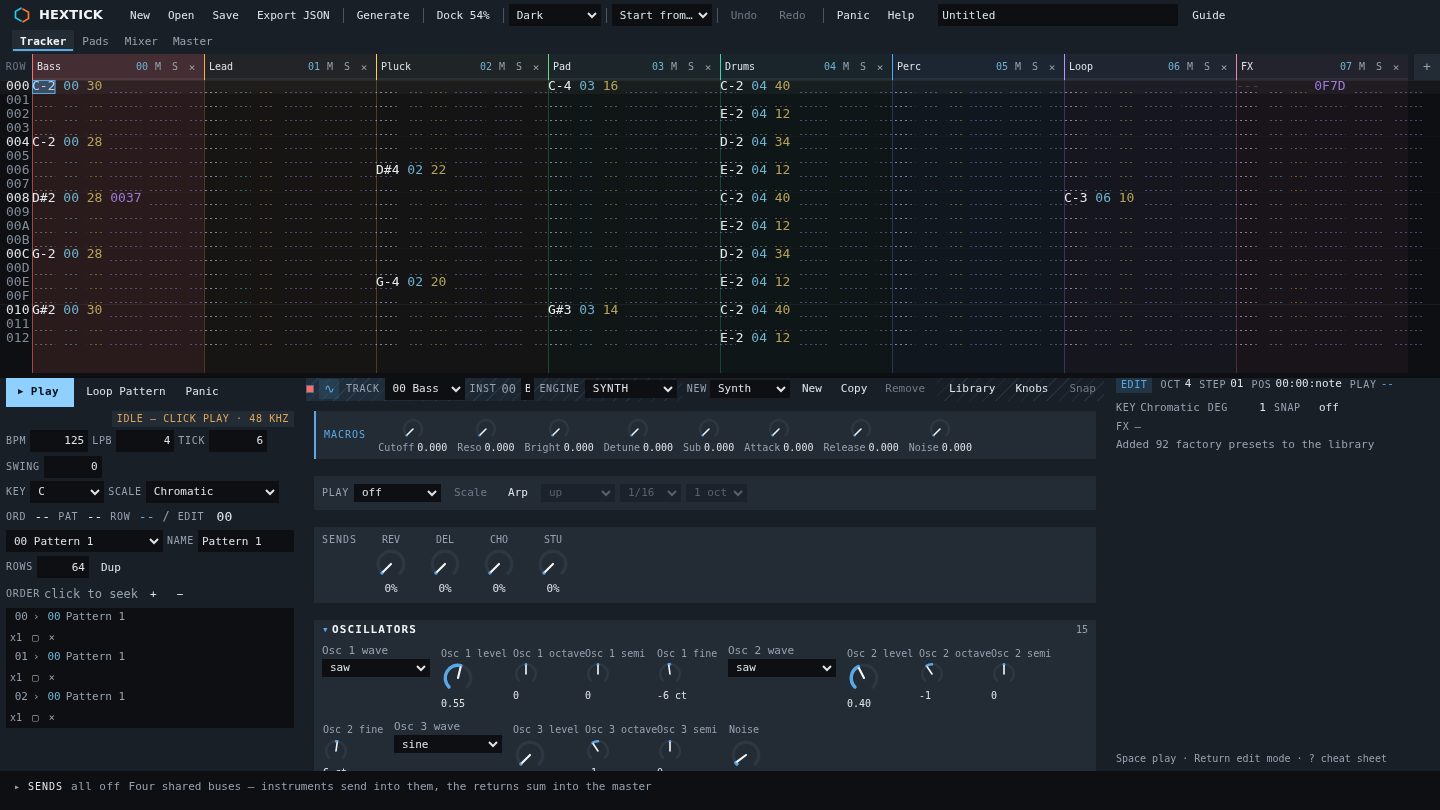
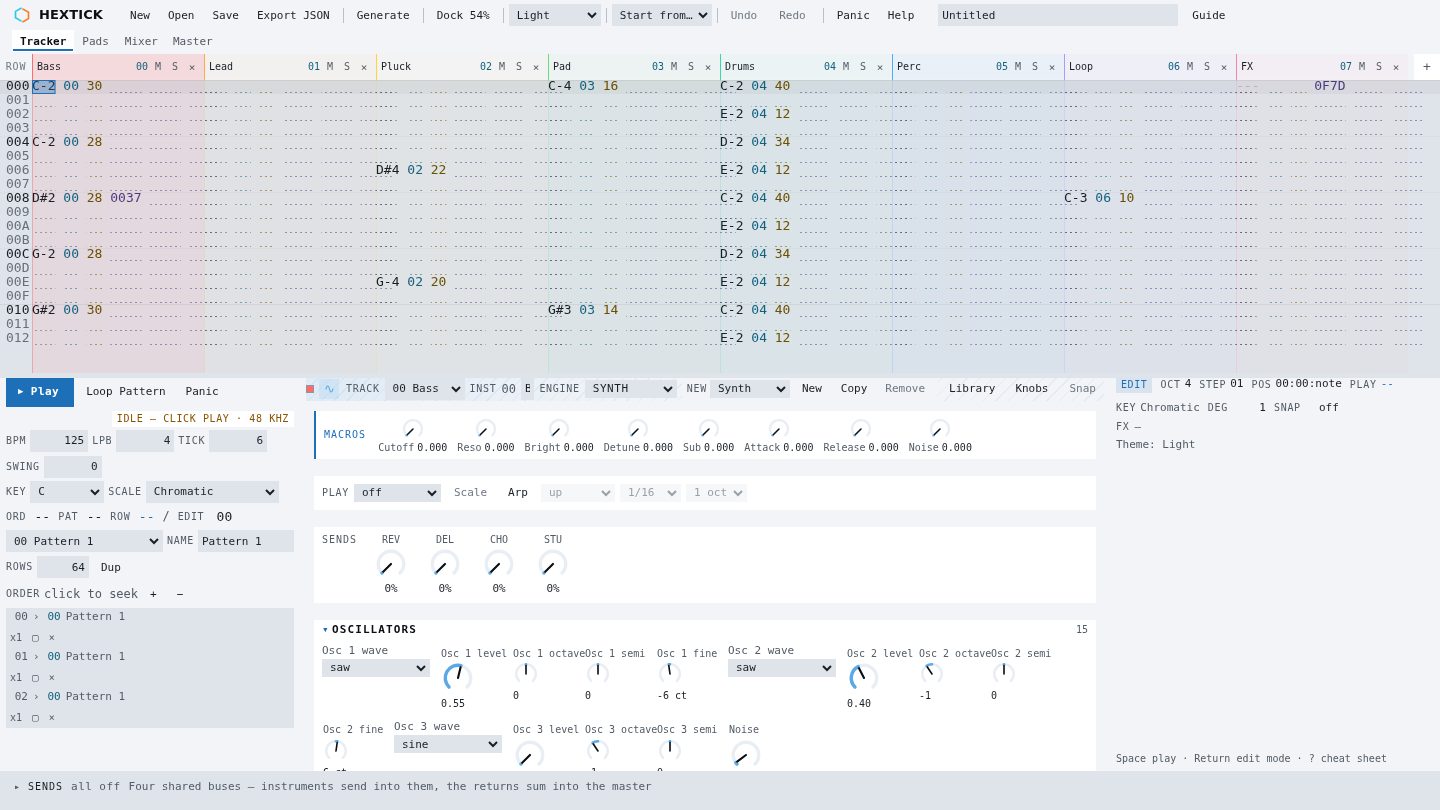
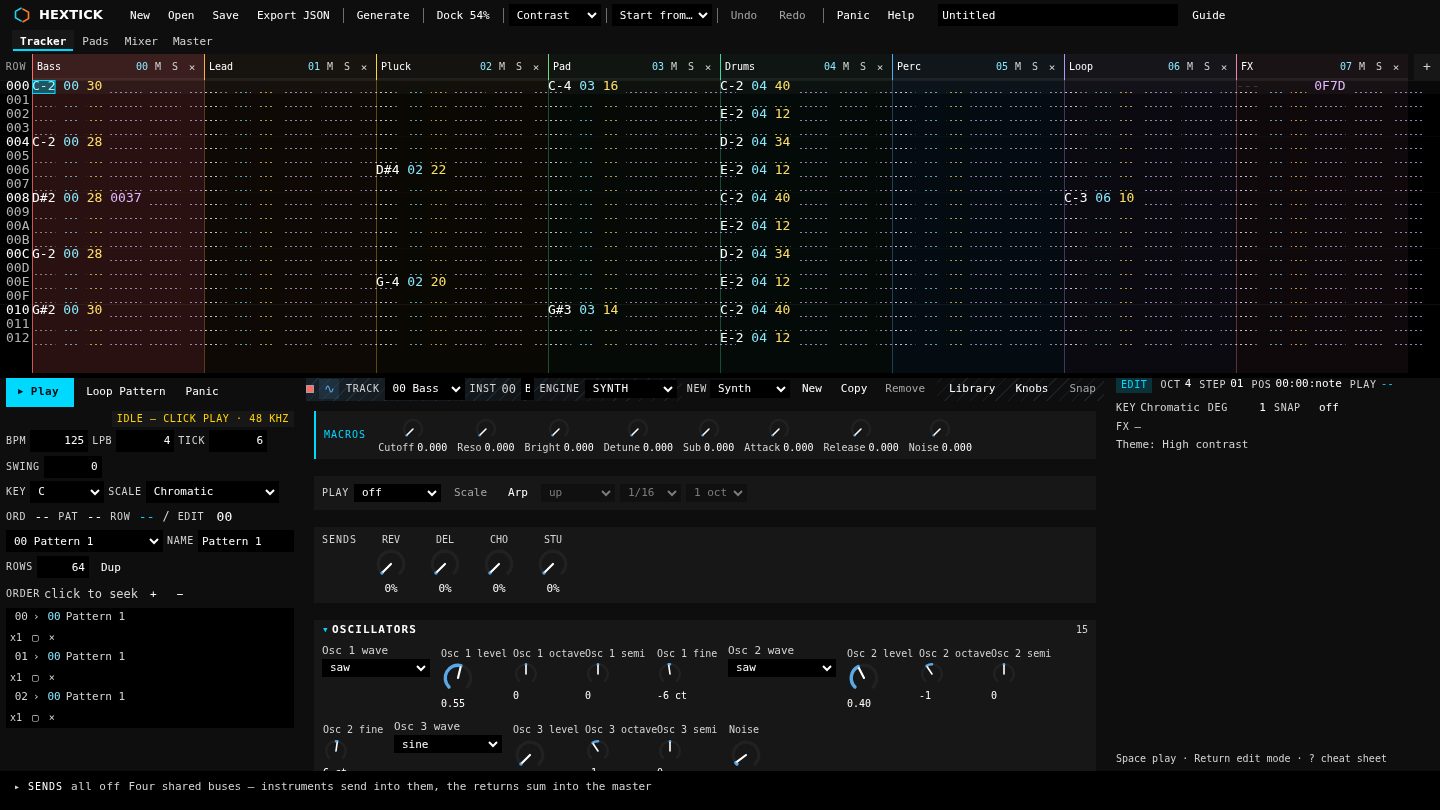
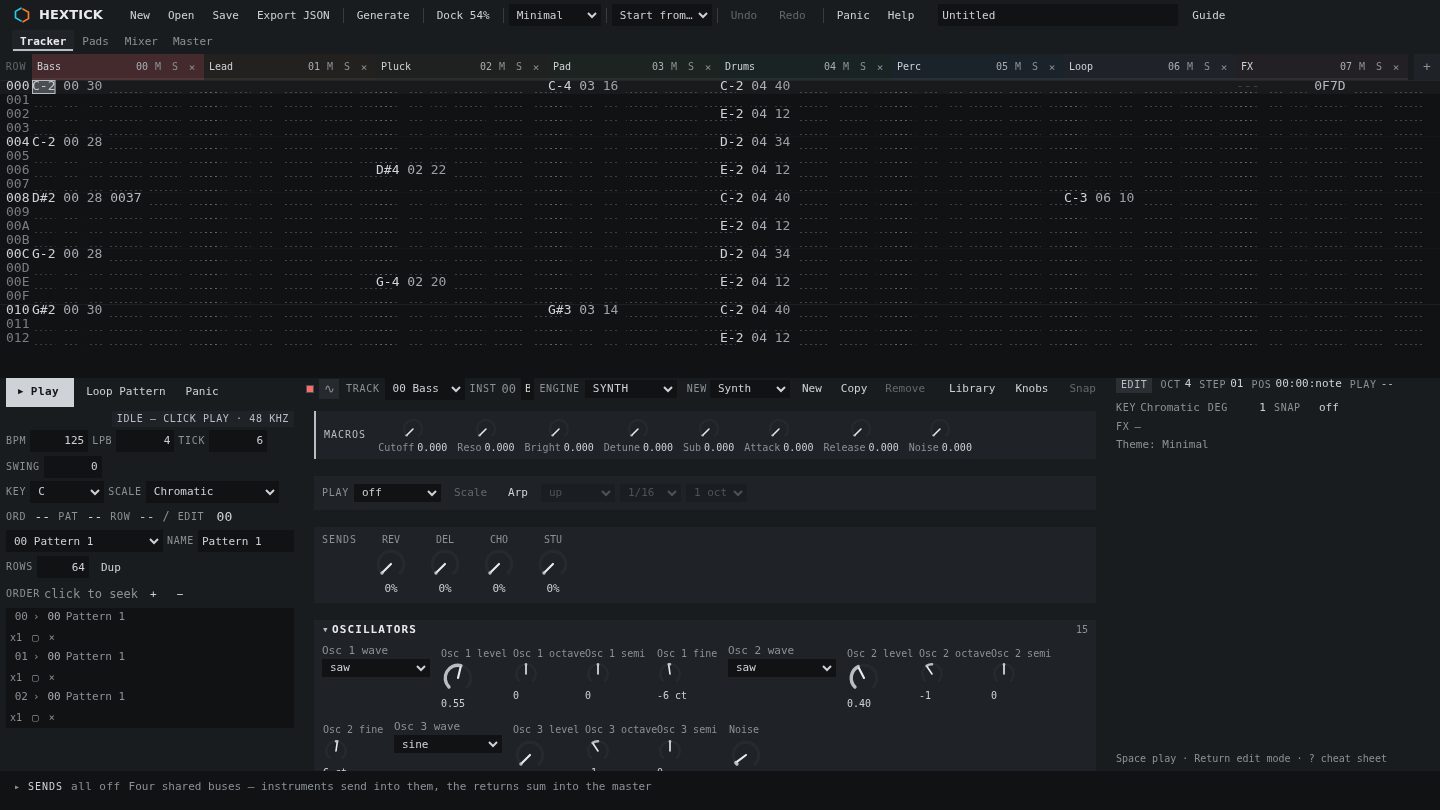
Dark for a dim room, Light for a bright one, High contrast for a projector or tired eyes, and Minimal when you want the data and nothing else. A skin is a stylesheet: the grid, the pads, the waveform and the meters all read their colours from it, so switching changes the whole instrument rather than repainting the panels.

The tracker in the Dark theme: deep blue-grey surfaces, coloured tracks.
Dark The default. One accent, coloured tracks.
The tracker in the Light theme: light surfaces, dark text, pastel track colours.
Light Same layout, same hierarchy, for a bright room.
The tracker in the High contrast theme: black page, white text, cyan accent.
High contrast Black page, white text, brighter field lines.
The tracker in the Minimal theme: one grey family, no track colours.
Minimal One grey family. No track colours, no engine marks.

The theme is remembered per browser, and it is the same choice in every view.

0x0500 From a hum to a finished track

The whole point of a tracker is that an idea reaches the speakers before you lose it. Here is the path, in the order you actually take it.

  1. 01

    Get something down

    Click a cell and type. Notes, chords, drums — the keyboard writes straight into the grid, and the step length is yours to set so you can punch in a run without counting. Drum kits get the pad grid instead: click to place a hit, drag to paint a run.

    The pad grid: one row per drum pad, with hits placed across the pattern
    The pad grid: one row per drum pad. Click to place a hit, drag across to paint a run, drag up and down inside a cell for velocity.
  2. 02

    When you stall, ask for an idea

    The Generate menu writes a melody in your song's key. Choose the shape — arch, rise, fall, wave, flat — how busy it is, and how far it wanders. Because it only ever writes notes from your scale, it cannot write a wrong one: the worst case is something you find dull, and you press Ctrl+Z once and ask again.

    The Generate menu open over the pattern grid, showing Shape, Density and Range choices, the seven variation buttons, and the chord progression list
    The Generate menu. Shape, density and range for a melody; seven one-click variations; and a list of chord progressions — each described in plain words rather than by its numerals.
  3. 03

    Make the second bar different

    Seven variations — octave, thin, fill, ornament, answer, invert, shuffle. Each one keeps the rhythm and moves the notes, which is what makes the result sound like the same part played differently rather than a new one. It also means a varied bar still lines up with the drums.

    The variation buttons: Octave, Thin, Fill, Ornament, Answer, Invert and Shuffle
    Seven variations. Each keeps the rhythm and moves the notes, so a varied bar still lines up with the drums.
  4. 04

    Put chords underneath

    Pick a progression from a list: the four chords behind a thousand songs, the doo-wop turn, a ii–V–I, the twelve-bar shape. It is written in your key, with the numerals describing the chords you actually get — so it reads the minor ones as minor — and the voicing is set to suit, so it arrives as chords rather than as single notes.

    The chord progression picker, showing the numeral name and a plain-language description of the chosen progression
    The progression picker. The numerals are the label, but the sentence under it is the part that tells you what you are about to get.
  5. 05

    Stop copying and pasting bars

    A scene gives every track its own clip with its own loop length. Write a two-bar bass line once and let it run four times under an eight-bar drum part — no duplicate patterns, no counting bars, and the long part is never cut off.

    The order list showing one scene expanded into a row per track, with the Drums clip looping 8 rows and the Perc clip looping 16 while the rest play all 64
    A scene: every track gets its own clip and its own loop length. Drums loop 8 rows and Perc 16, under parts playing the full 64 — and nothing is duplicated.
  6. 06

    Make it sit together

    One strip per track — fader, pan, EQ, sends — and the EQ curve drawn over the live spectrum. Sends belong to the track, so two parts using the same instrument can still have different reverb: a dry lead over a wet pad.

    The mixer, with a channel strip per track carrying fader, pan, mute, solo, sends and three EQ knobs, and the spectrum above drawing the selected track EQ curve
    The mixer. A strip per track, three EQ knobs you can reach without opening anything, and the EQ curve drawn over the live spectrum above.
  7. 07

    Get it out

    Bounce the master or one file per track, whole song or a single pattern. The stems add up to the master, so a mix you hand to somebody else is the mix you approved.

0x0600 Nothing in the way

Most of the work of making music in software is not making music. This is the part that is deliberately absent.

0x0700 Take it with you

Bounce the master mix, or one file per track, as the whole song or a single pattern. Nothing is normalised, compressed or faded on the way out — a bounce is a copy of what you heard, not a second opinion about it.

Projects are files too, and the samples travel inside them — so a song opens on another machine intact, and there is no account holding your work.

  • Master mix, through the chain, as you heard it
  • Per-track stems that add up
  • 16 / 24 / 32-bit float WAV
  • Whole song or one pattern
  • Tail for the reverb and delay
  • Projects as portable files

0x0800 Open it

It is a page, and it is free — the demo above is already the real thing, with nothing held back and nothing to sign up for.